
Cloud Sync
Set Rclone Executable Path
Section titled “Set Rclone Executable Path”Rclone is a command-line program for managing cloud storage files. The software relies on Rclone for cloud data transfer, so all cloud sync related functions require setting the path to the Rclone executable file (rclone.exe) first.
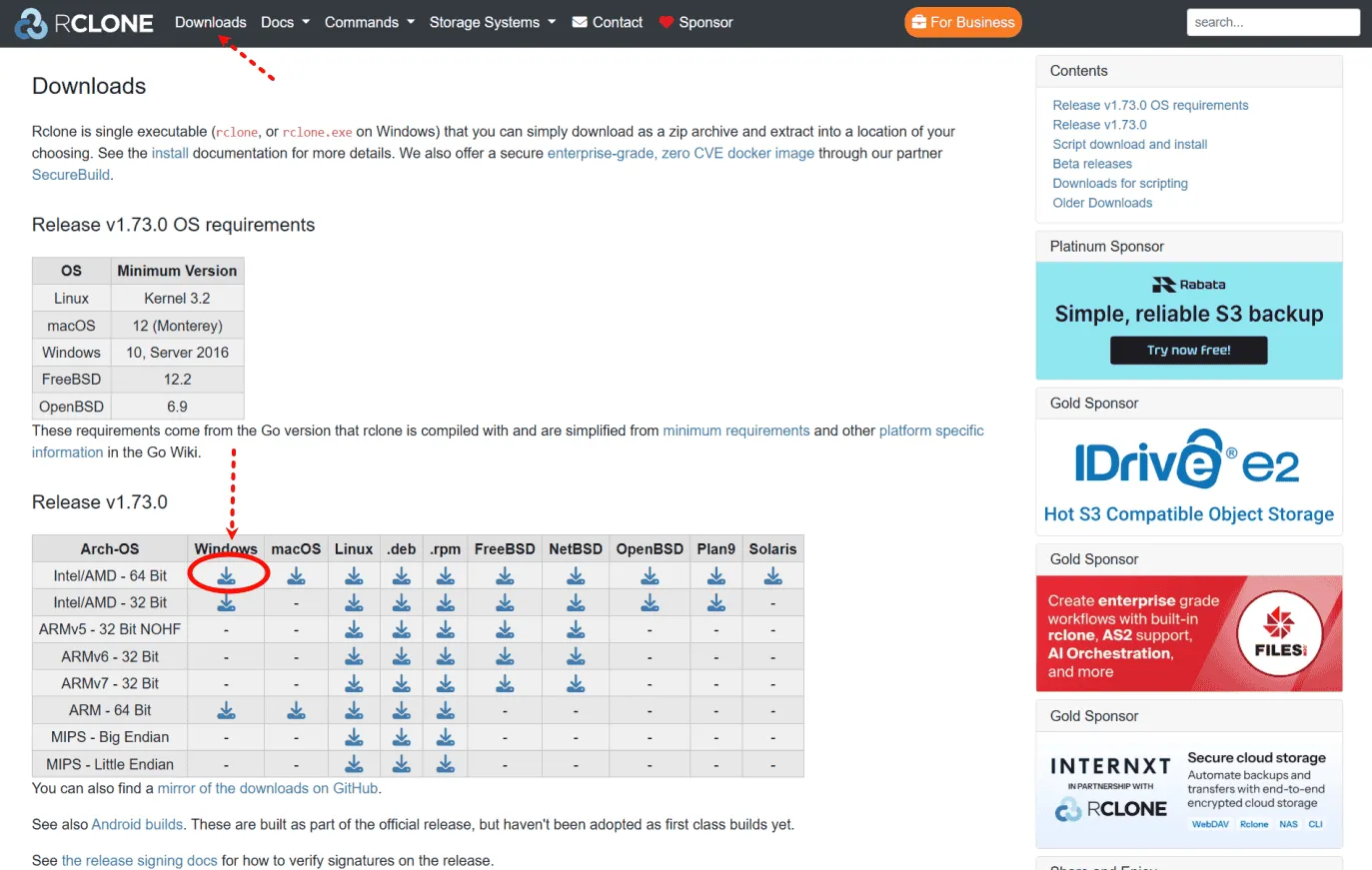
First, open Rclone’s official website and go to the download page. Select the program file corresponding to your platform and system architecture for download:
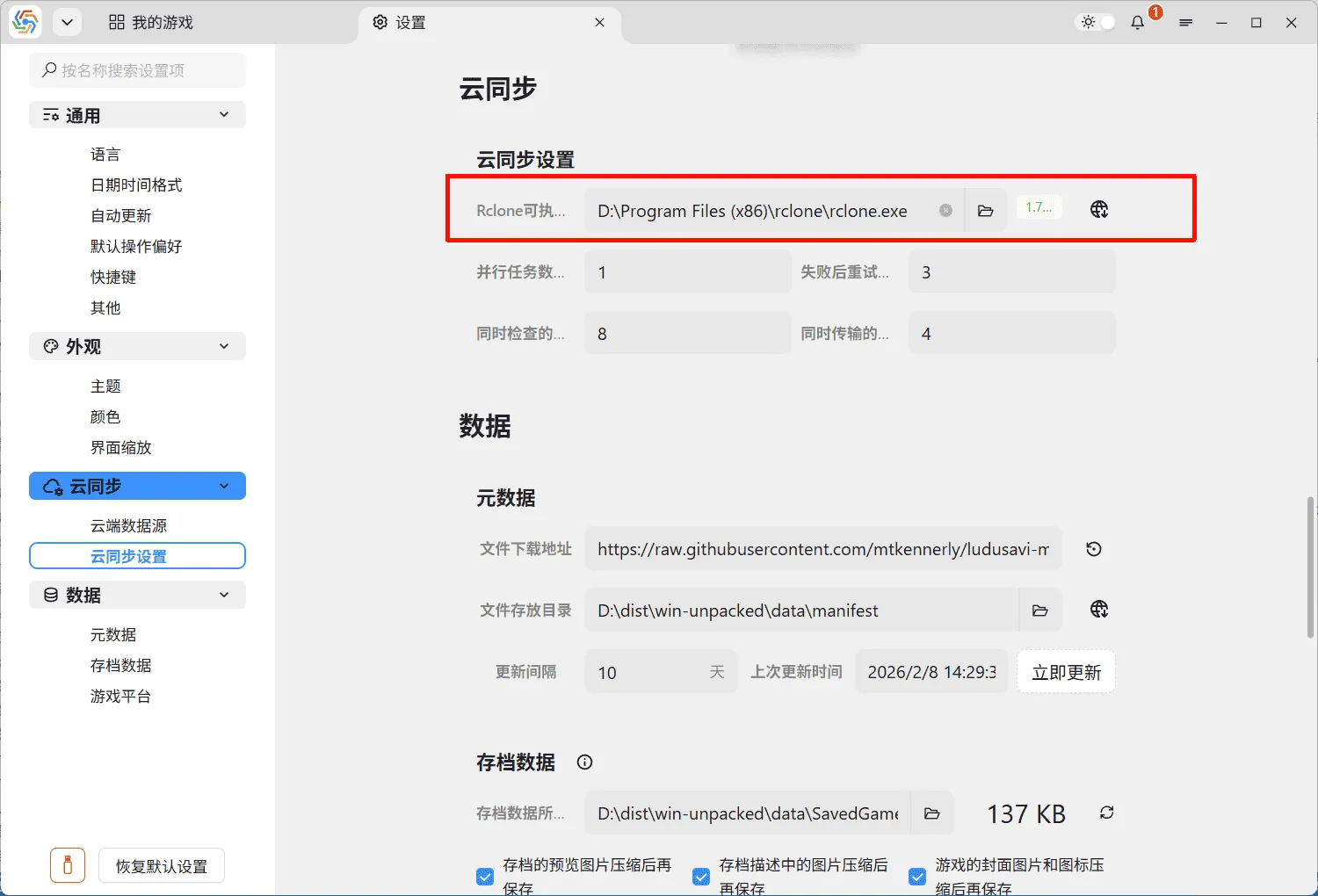
Then, decompress the downloaded Rclone zip file and locate the rclone.exe file within it. In the software’s settings page, set Cloud Sync Settings —> Rclone Executable Path to the directory where rclone.exe is located. The Rclone version number appearing next to it indicates a successful setup:
Add Cloud Data Source
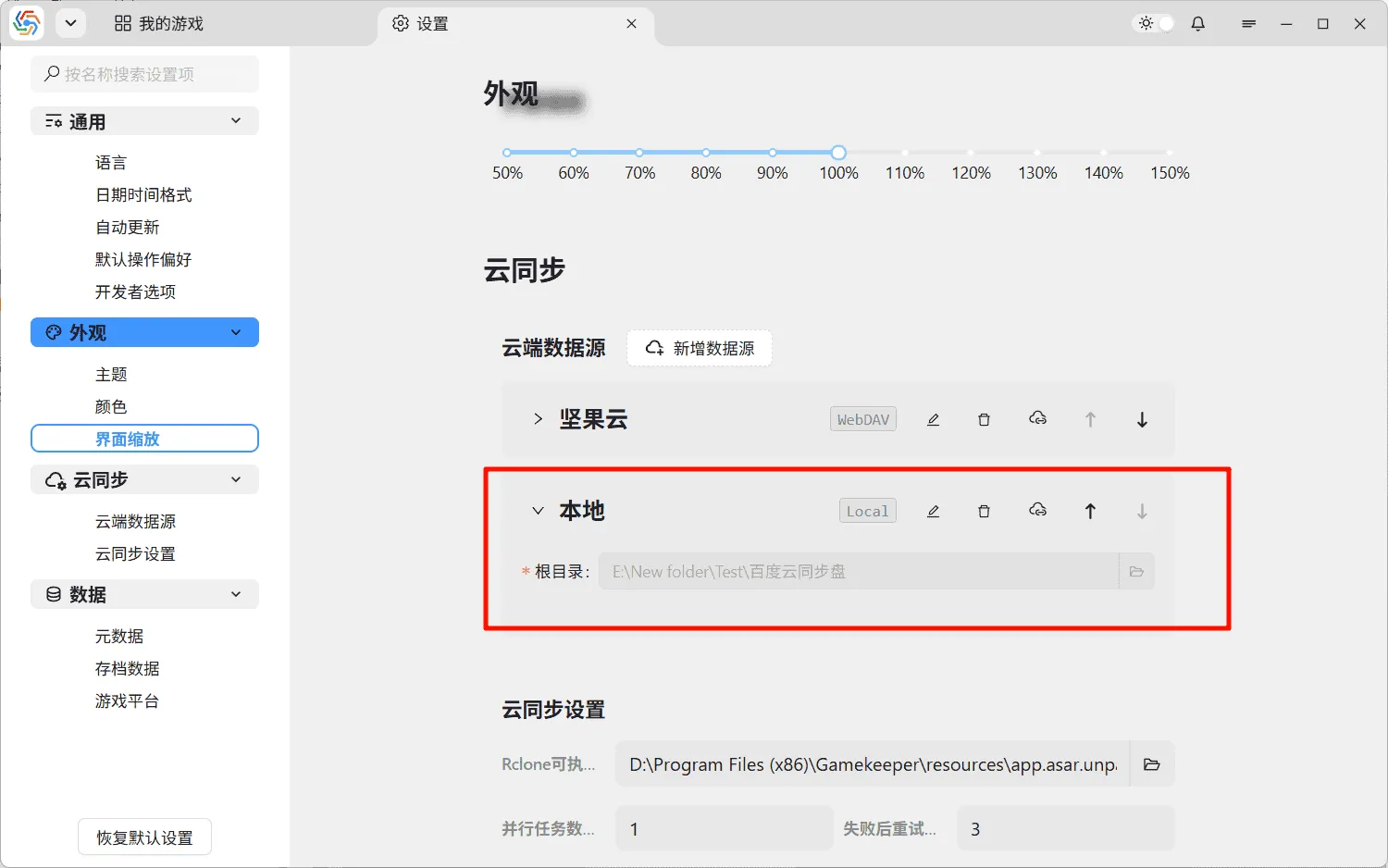
Section titled “Add Cloud Data Source”The first step in using cloud sync is to add available cloud data sources. Gamekeeper currently supports adding WebDAV, Amazon S3, and local directory types of cloud storage (more types will be supported in the future). For details, please refer to Cloud Data Source Settings in the software settings.
Set Cloud Directory for Games
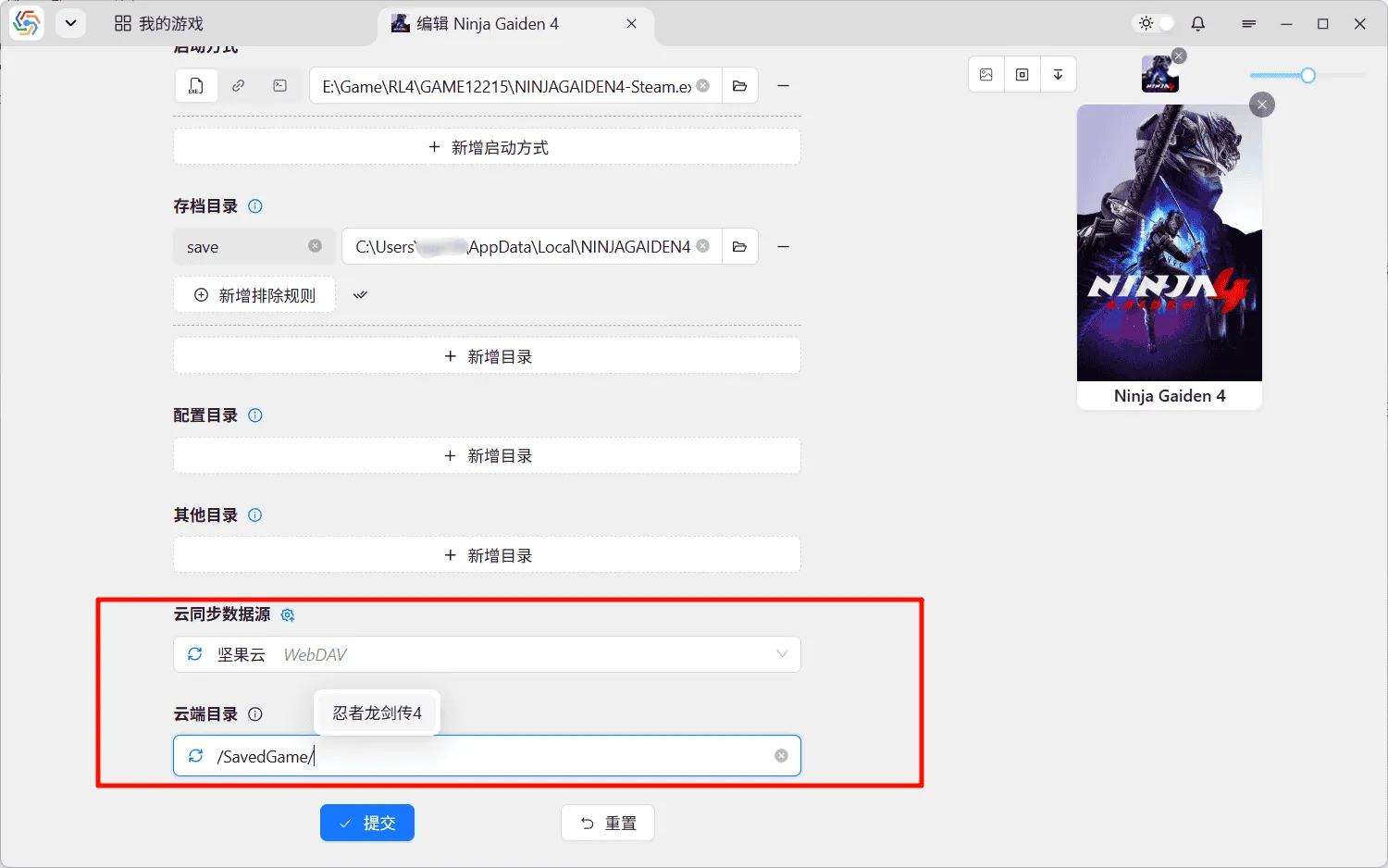
Section titled “Set Cloud Directory for Games”Each game can have a cloud directory set in its game information entry interface, which will be the final target upload directory for that game during cloud sync. When setting it up, first select the cloud data source, then enter ”/” in the cloud directory field to automatically retrieve the directory structure of each level within the data source, allowing you to locate the desired final directory:
Cloud Sync Management
Section titled “Cloud Sync Management”Automatic Upload
Section titled “Automatic Upload”There is an automatic upload switch in the upper left corner of each game’s save management interface. When this switch is turned on, all operations involving save data changes for the current game will automatically trigger an upload task, such as adding, deleting, or modifying save slots, branches, and nodes. Turning on this switch will also trigger an initial upload task:
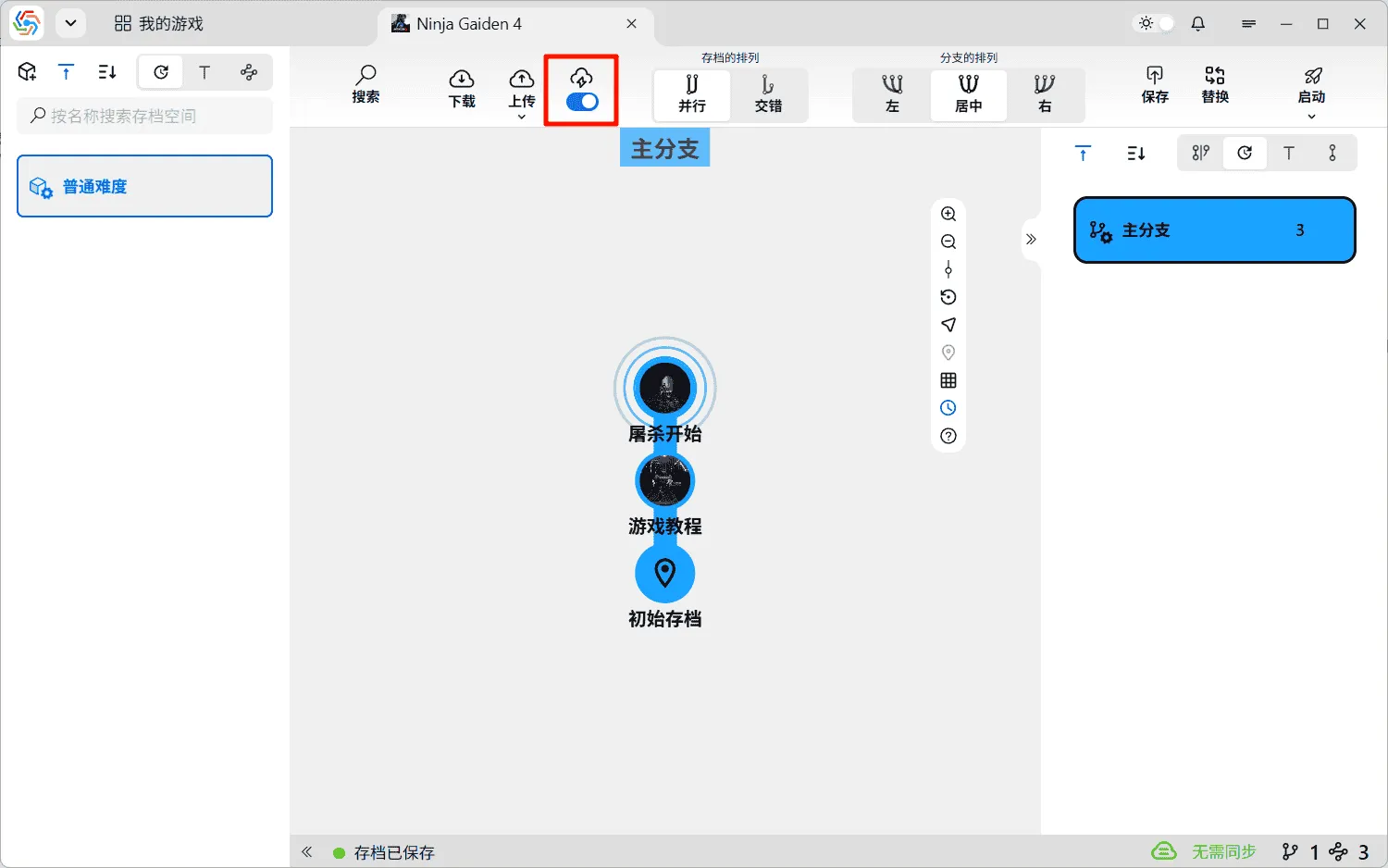
Additionally, with automatic upload enabled, a version check will be performed each time you enter the game’s save management interface to prompt the user whether to upload or download.
Manual Upload
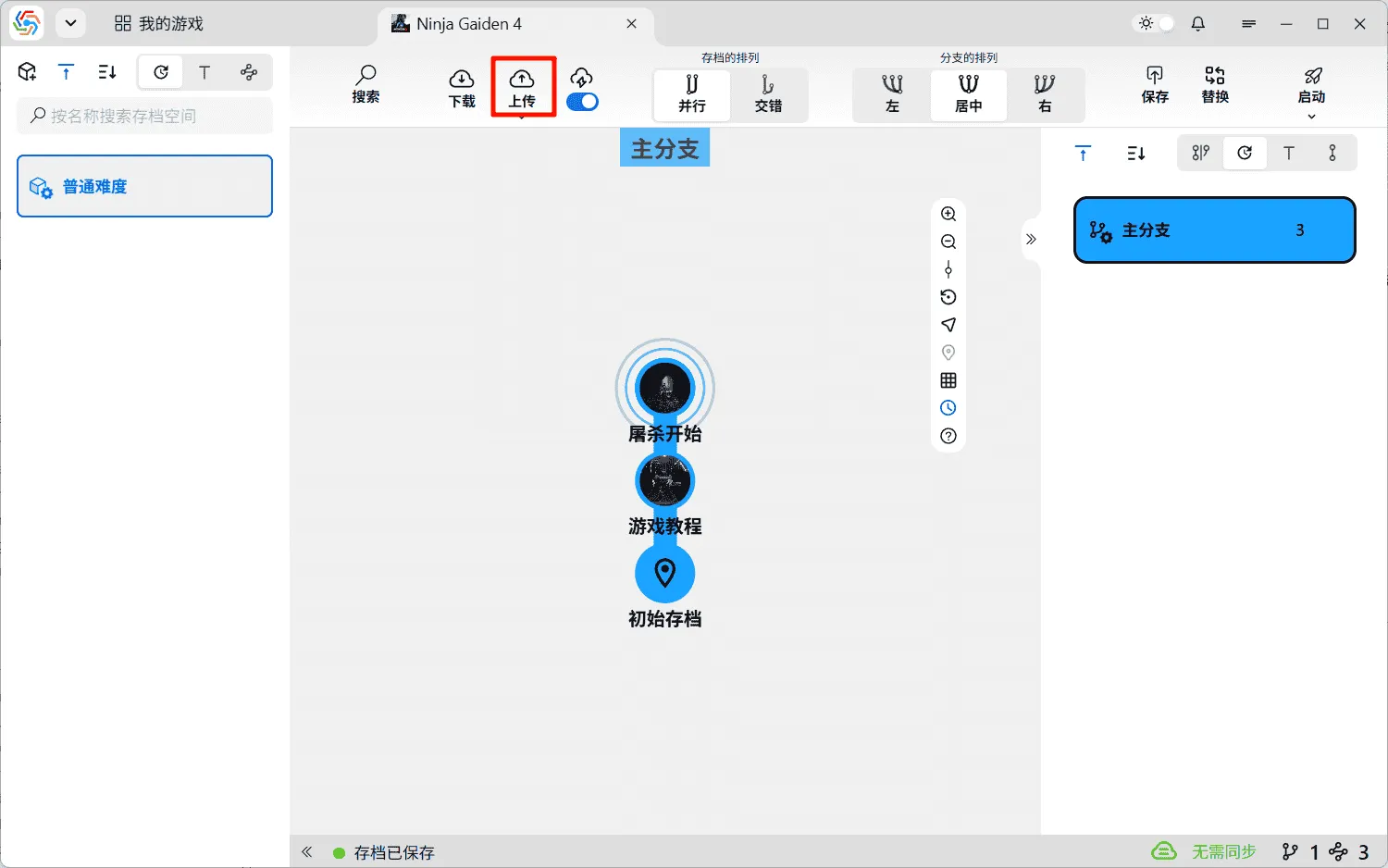
Section titled “Manual Upload”The upload button next to the automatic upload switch is for manual upload, which manually triggers an upload task:
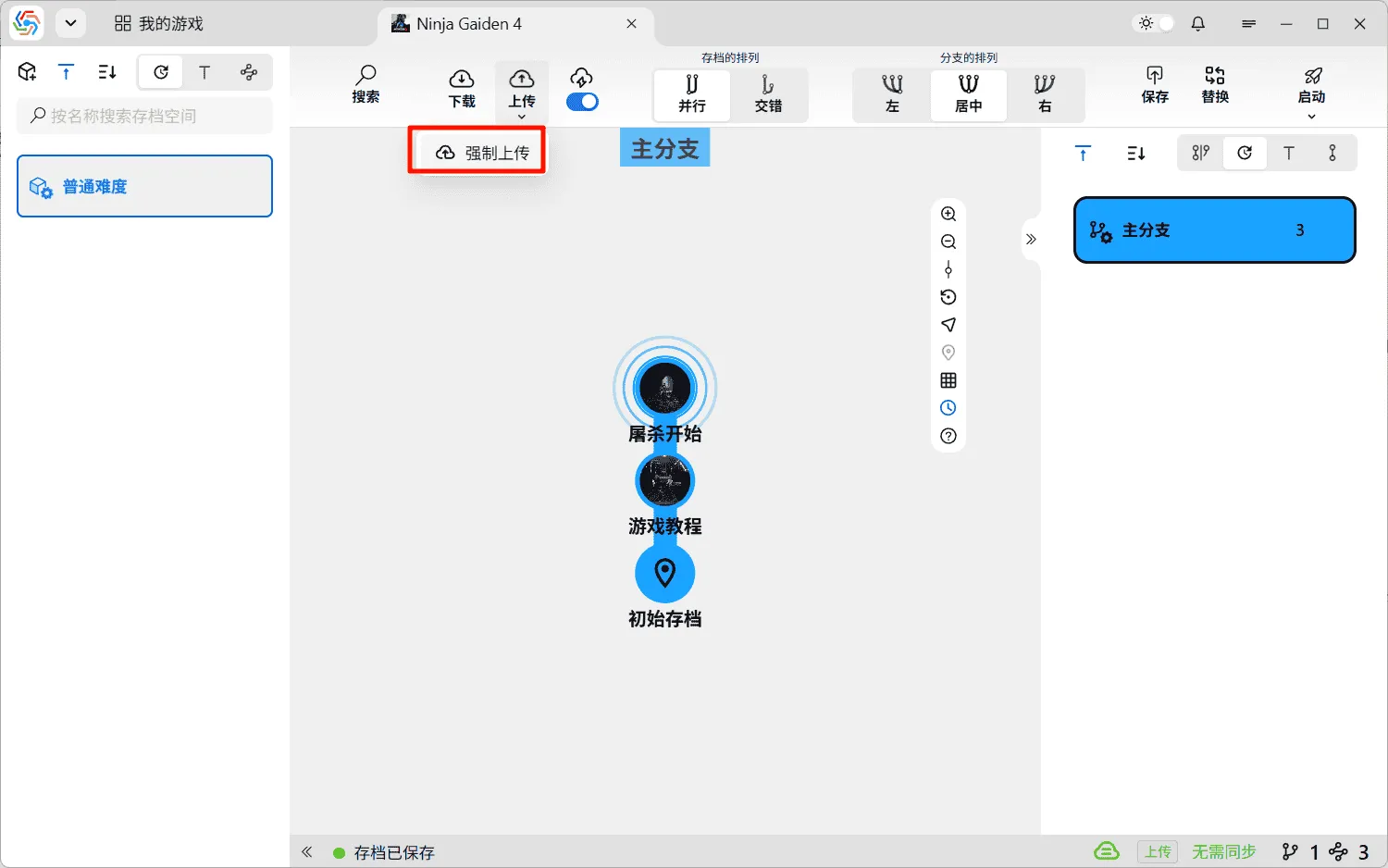
Force Upload
Section titled “Force Upload”The Force Upload button is available in the dropdown menu of the manual upload button. Cloud sync tasks triggered by automatic or manual upload require a prior comparison of versions on both ends. Upload is only permitted when the local data version is ahead of the cloud data; otherwise, prompts for version lag or even version conflicts will appear. Force Upload, however, bypasses the version comparison process and forcibly overwrites the cloud data with local data. It is often used to resolve version conflicts or fix corrupted cloud data:
Download
Section titled “Download”The download button on the far left triggers a cloud sync task that downloads cloud data to the local machine, replacing local data. The download task is also essentially a forced operation, completely skipping version comparison during the task. Since downloading involves changes to local data, no operations can be performed on the current save data during the entire download process. The save management interface will refresh automatically upon task completion:

After the download task is completed, the local data from before the download will be retained as a backup. If you find that the cloud data is corrupted, you can use the data rollback function in the download button’s dropdown list to revert the local data to its state before the download.
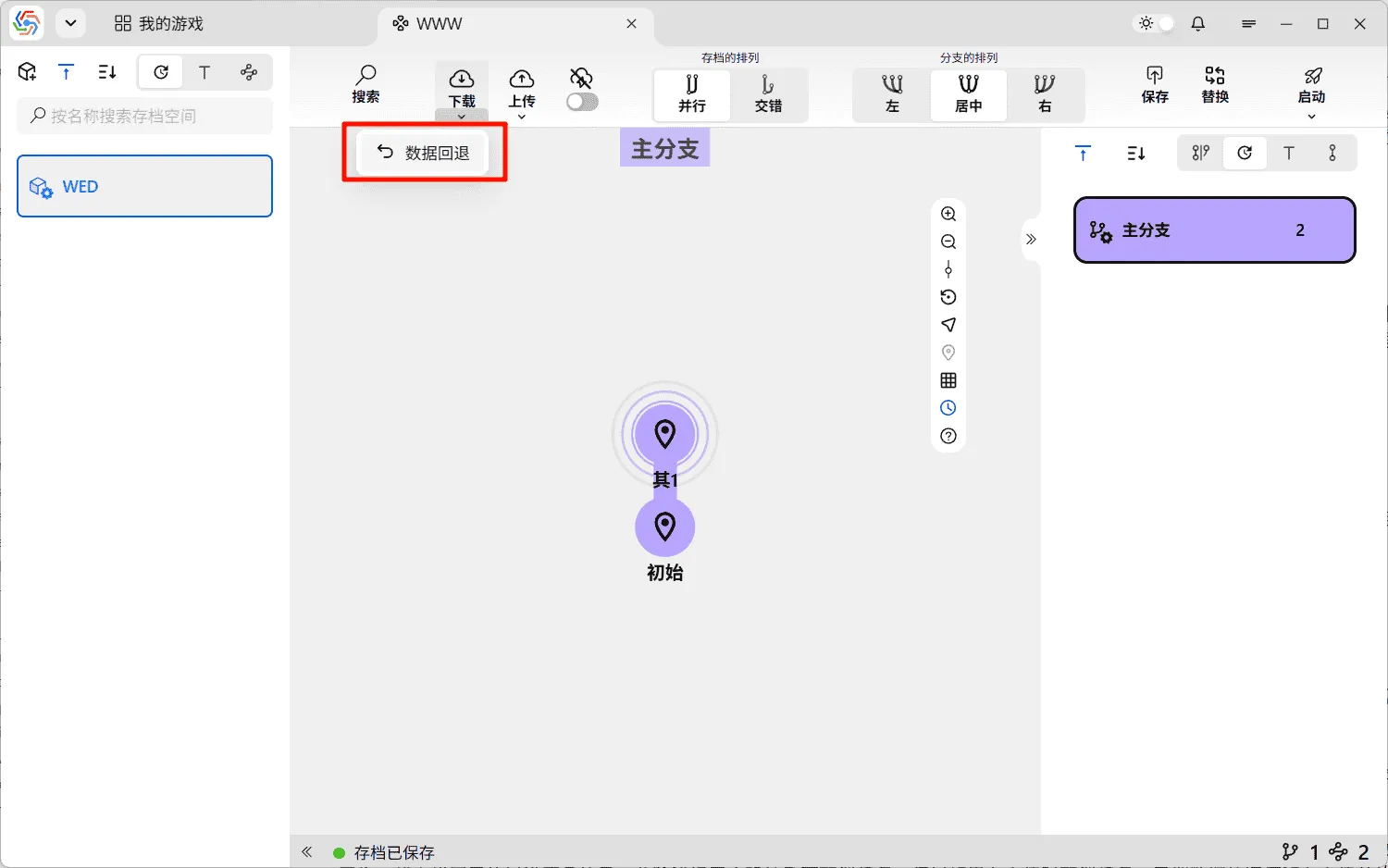
Task Status Bar
Section titled “Task Status Bar”The cloud sync task status bar is located on the right side of the status bar at the bottom of the game save management interface. It displays the main information of the currently running cloud sync task. The task may go through the following stages:
- Queued: The current game’s cloud sync task is blocked by another game’s cloud sync task, causing it to be queued. Queued tasks can be canceled directly without confirmation.
- Preparing: Preparing for data transfer. This task can be canceled after user confirmation.
- Transferring Data: Data transfer is in progress. The status bar shows a progress bar. This task can be canceled after user confirmation. However, if canceled during an upload, the cloud data will remain at its pre-upload version, and already uploaded data will not be deleted with the task cancellation, leading to cloud data redundancy. Canceling during a download does not cause data redundancy issues.
- Switching Version: The version of cloud or local data is being switched. Version switching is a data-sensitive operation, so this stage does not allow cancellation. Users should ensure this task is not forcibly interrupted to avoid the risk of data corruption.
- Cleaning Data: This stage only appears during upload tasks; download tasks do not require data cleaning. It is used to clean up old versions of data in the cloud after a version switch. This task can be canceled after user confirmation, but the version switch in the cloud has already been completed. Canceling at this point will not revert the cloud data to the old version, only cause cloud data redundancy.
- Waiting for Upload: This stage typically appears after a version comparison. The comparison result indicates that new local data has not yet been uploaded to the cloud, and no upload task is currently running. It prompts the user that local data is waiting for upload.
- Version Lag: This stage indicates that the cloud data version is ahead of the local data version. Regular upload tasks cannot run in this state. You need to download the latest version of the local data first before you can upload normally.
- Version Conflict: This stage indicates that the versions of cloud data and local data are incompatible, with new data on both sides not yet synchronized to the other. You need to choose whether to keep the cloud data or local data. To keep cloud data, perform a download first. To keep local data, perform a force upload first.
- Sync Error: The cloud sync task terminated abnormally. The task bar can display the error details.
- No Upload Needed: The version of cloud data is the same as the local data version; no data upload is required.
- Completed: The cloud sync task is complete.
- Canceled: The cloud sync task has been canceled.
- Cloud Directory Locked: To prevent data anomalies caused by multiple terminal devices simultaneously syncing to the same cloud directory, any cloud sync task will first upload a LOCKED file before running to indicate that the cloud directory is in use. If another device is indeed performing a cloud sync, you need to wait for it to complete before proceeding. If the lock cannot be released due to a previous cloud sync task being abnormally interrupted, manually delete the LOCKED file in the cloud directory.
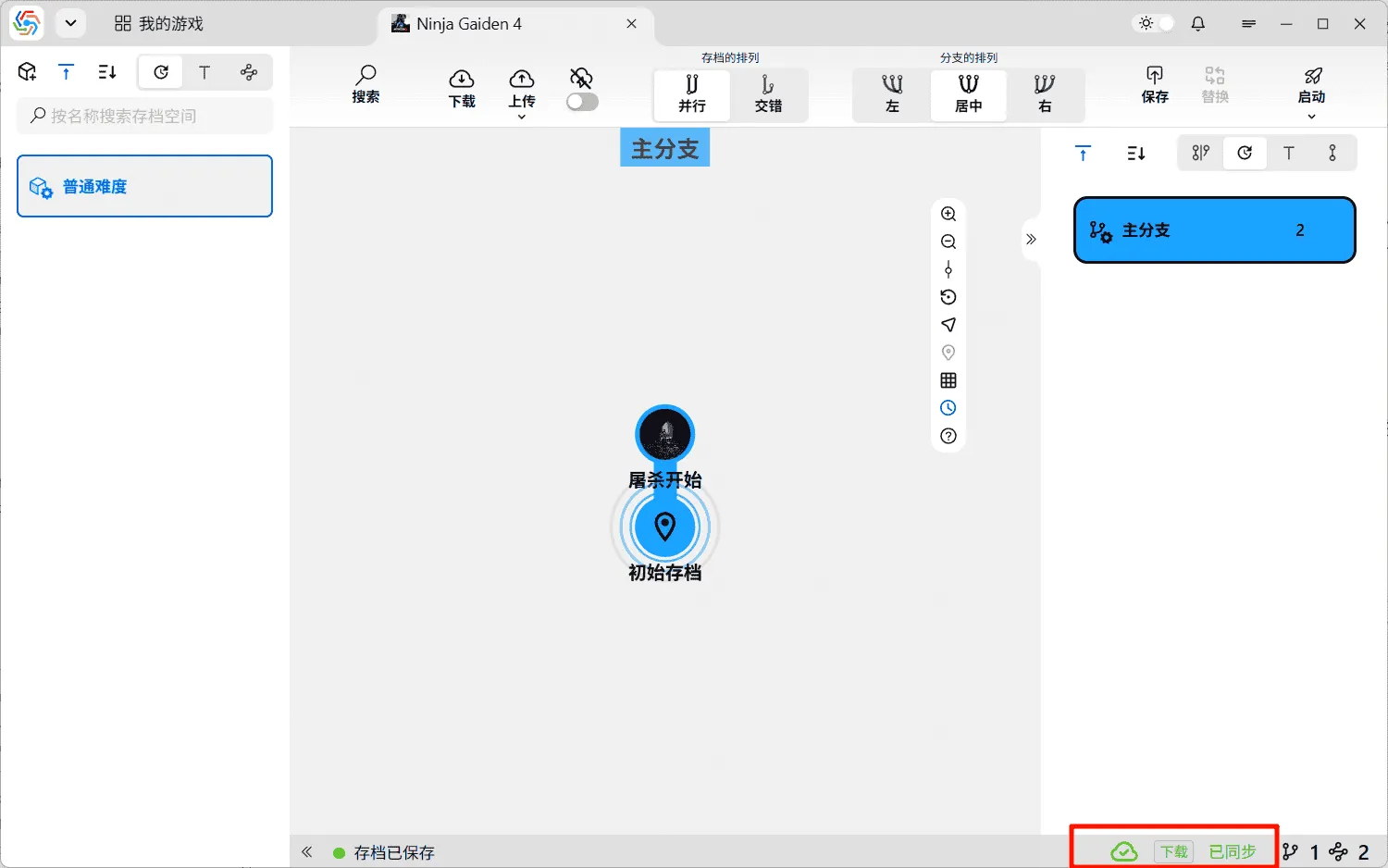
Upload Configuration
Section titled “Upload Configuration”The task status bar may occasionally display a task named “Upload Configuration.” Upload Configuration refers to the software uploading basic game information (name, installation directory, save directory, etc.), quick save related settings, cover art, and icon files to the cloud. If automatic upload is enabled for the current game, the aforementioned information will be uploaded to the cloud immediately upon modification, and an “Upload Configuration” task will appear in the task status bar. In fact, this information is also uploaded during the process of uploading save data, but at that time, there is no separate “Upload Configuration” sync task triggered.
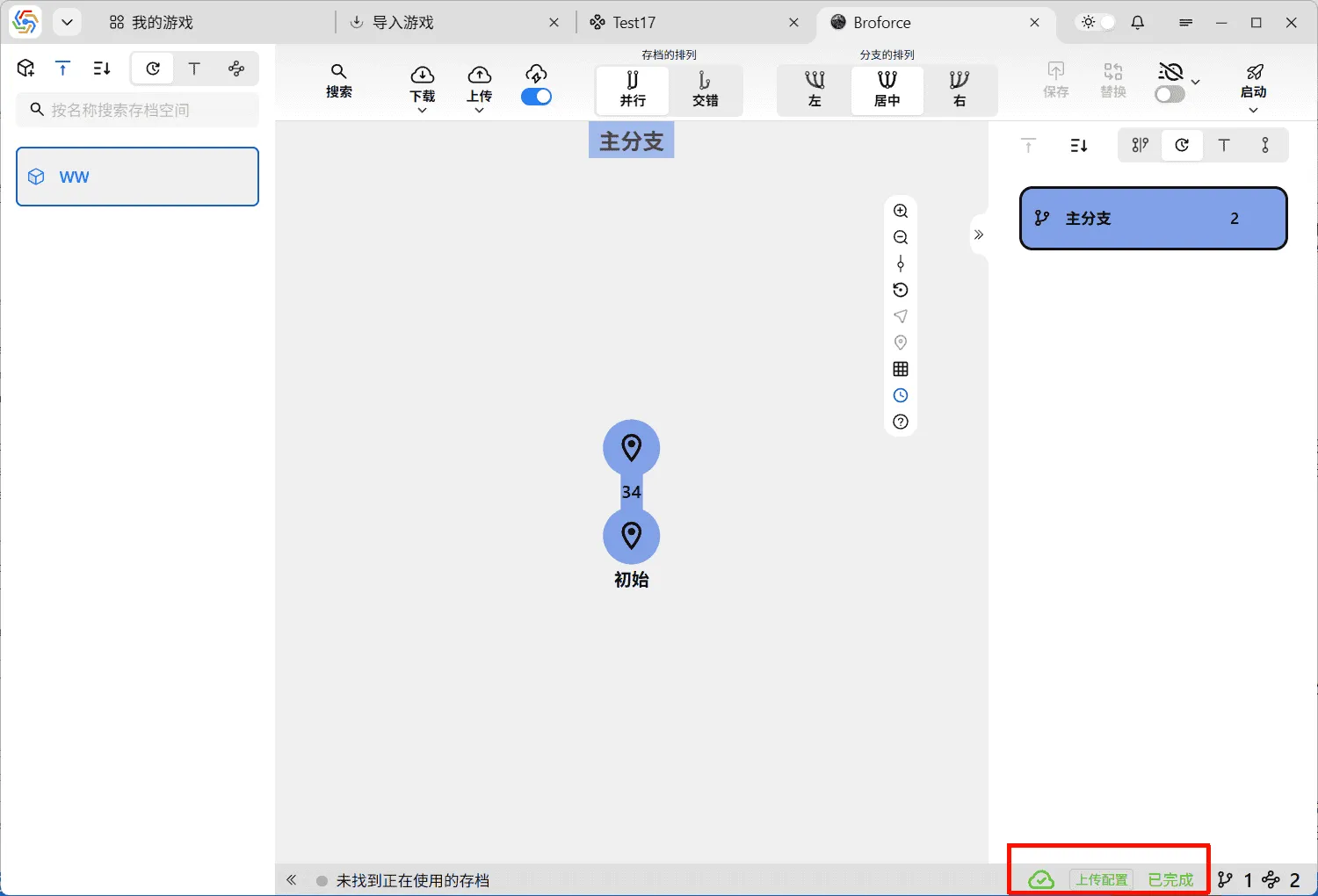
This configuration information uploaded to the cloud is primarily used during Import Game. After a user changes devices, they can directly import the game from the previous device to the current one via the Import Game —> Cloud Import function. The game’s name, installation directory, save directory, quick save settings, last save time, etc., can be directly inherited, eliminating the need to manually add the game again.
Other Issues
Section titled “Other Issues”Data Source Jump Authentication Successful, Software Still Shows Unauthenticated
Section titled “Data Source Jump Authentication Successful, Software Still Shows Unauthenticated”If you are connecting to cloud services using proxy technology, you need to set the correct network proxy for the software (Reference), or enable the TUN proxy mode so that the software can properly obtain the information returned from the cloud.
Cloud Sync Error: spawnSync XXX\rclone.exe ENOENT
Section titled “Cloud Sync Error: spawnSync XXX\rclone.exe ENOENT”This error indicates that the rclone.exe file cannot be found at the Rclone executable file path currently set in the software. Refer to the Set Rclone Executable Path section for detailed steps on setting the Rclone path.
How to Clean Redundant Data After Task Cancellation
Section titled “How to Clean Redundant Data After Task Cancellation”Canceling a download task does not cause redundant data locally. Only canceling an upload task can cause redundant data in the cloud. These redundant data will be completely cleaned up during the data cleaning phase the next time you perform an upload task.
Why Does Task Progress Occasionally Go Backwards
Section titled “Why Does Task Progress Occasionally Go Backwards”When a sync task is running, the software checks files and uploads them simultaneously. As file checking progresses, the total transfer volume increases. Since the file upload speed is much slower than the file checking speed, the task progress will appear to go backward as the total transfer volume grows, which is normal. Another possibility is that a file transfer fails, and the software automatically retries, causing the task progress to go backward.
Cloud Sync Download Complete, No In-Use Save Found
Section titled “Cloud Sync Download Complete, No In-Use Save Found”The save file in use before cloud sync does not exist in the cloud saves, causing the software to be unable to find the in-use save file after cloud sync. At this point, select any save file you wish to use and perform a restore operation:

How to perform cloud synchronization for cloud services that are not currently supported by the software
Section titled “How to perform cloud synchronization for cloud services that are not currently supported by the software”The software supports setting local folders as cloud data sources, so you can use mounting tools (such as CloudDrive or OpenList) to mount cloud drives as local disks, or utilize the cloud drive’s automatic folder synchronization function to connect local folders and the cloud, achieving cloud synchronization functionality.