
Contribute to Development
Internationalization
Section titled “Internationalization”Gamekeeper’s translation work is mainly divided into two parts: software interface and usage documentation, all hosted on crowdin. You need to register a crowdin account first, then join the corresponding project and follow the official instructions to proceed.
Software Interface
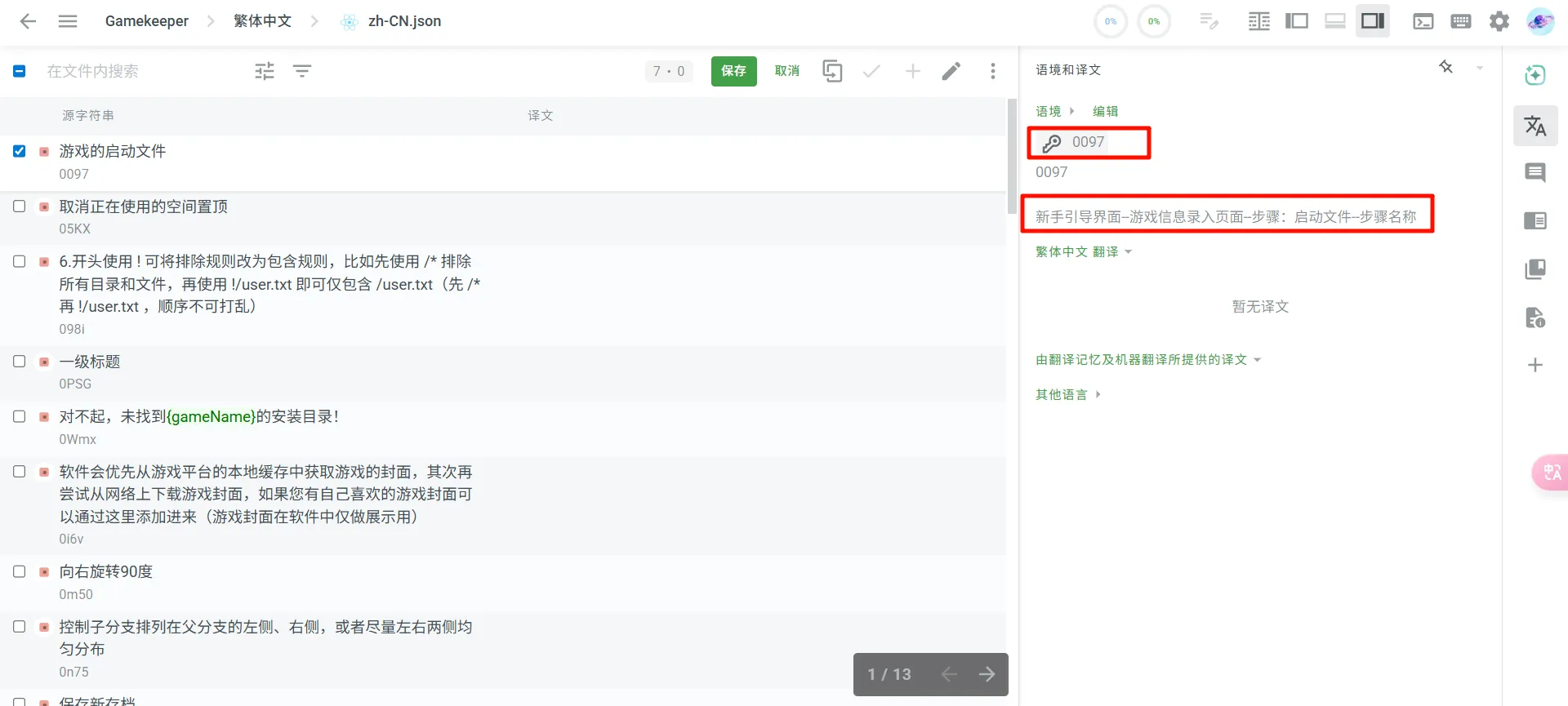
Section titled “Software Interface”The hosting project for Gamekeeper’s software interface is https://zh.crowdin.com/project/gamekeeper. In the crowdin translation interface, you can see the string’s reproduction steps and a unique key value:
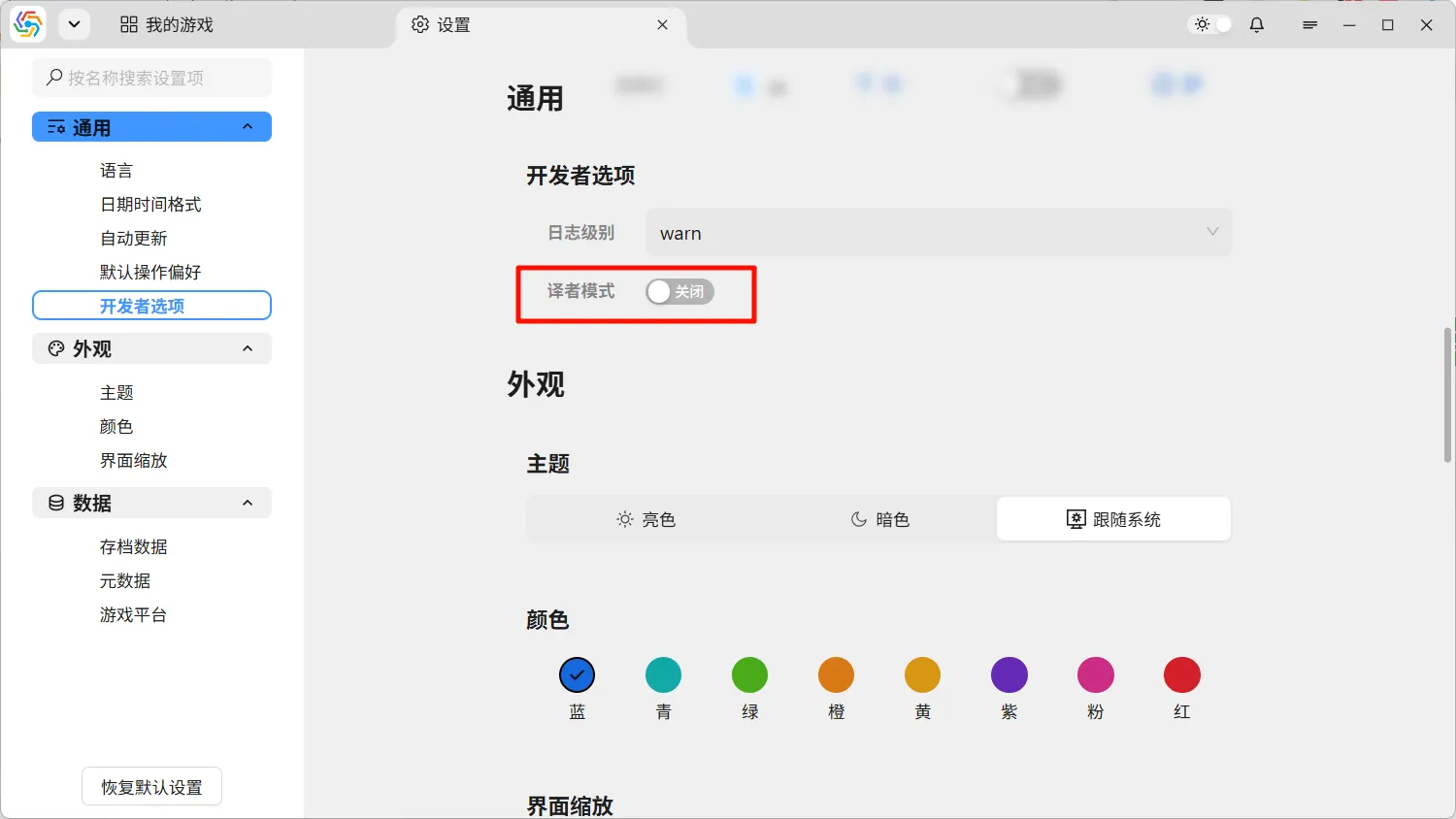
Opening the translator mode in the software will display the key values of all translatable strings, allowing you to intuitively see the specific location of that string in the software interface. Find the General ----> Developer Options —> Translator Mode toggle option in the settings page and turn it on:
Usage Documentation
Section titled “Usage Documentation”All software usage documentation is in mdx format (an extended markdown format). When translating, you only need to translate the text content. If there is a corresponding language version for the web links in the documentation, you can also adjust them as appropriate.
Please do not modify the following content during translation:
- Paths of resources such as images
- The
:slugmarker after the document title - JSX syntax structure
- Markdown syntax structure
Feedback
Section titled “Feedback”We welcome you to inform the author of any feature requests, bug reports, or future plans for this software through the relevant channels. Please refer to Feedback for feedback channels.
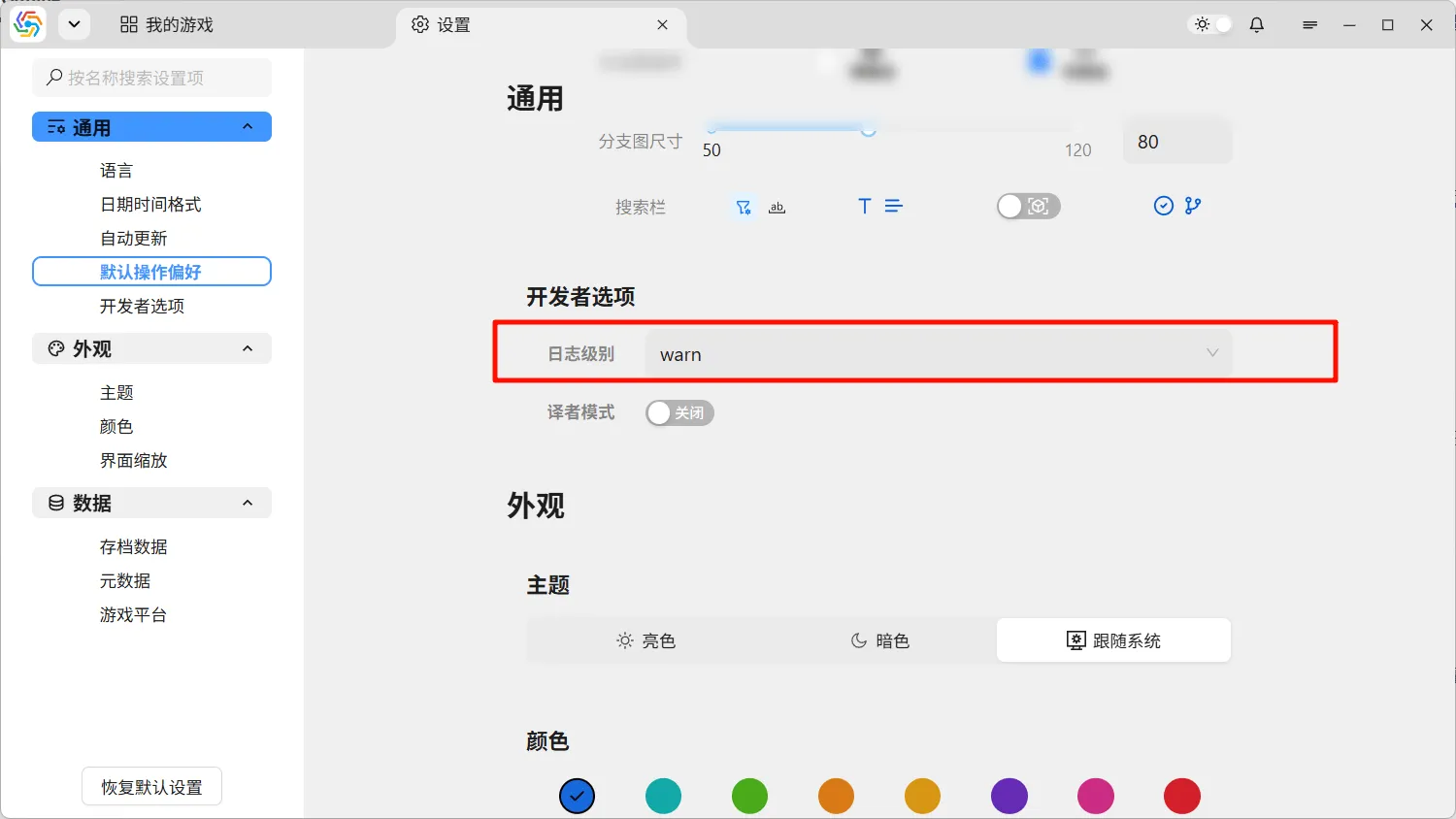
When reporting bugs, please try to include log files, reproduction steps, and screenshots of the interface. The software’s log file is located by default at C:\Users\[Username]\.gamekeeper\logs (if using the portable version, it is located in the log folder within the software’s installation directory). You can also adjust the log level in real-time via the General ----> Developer Options —> Log Level option in the settings page: