

Software Usage Issues
Risk Warning from SmartScreen When Installing or Launching Software
Section titled “Risk Warning from SmartScreen When Installing or Launching Software”The software is not currently code-signed. On Windows systems, it will be recognized as unknown software, and there is a probability of triggering an interception warning from the security center upon first use. Although I am currently unable to bear the cost of code signing, I promise never to use the software for any harmful purposes and will add code signing when conditions permit in the future. The final choice is always yours.
Startup Error: A JavaScript error occurred in the main process
Section titled “Startup Error: A JavaScript error occurred in the main process”operation not permitted
Section titled “operation not permitted”The software fails to start and reports the following error:
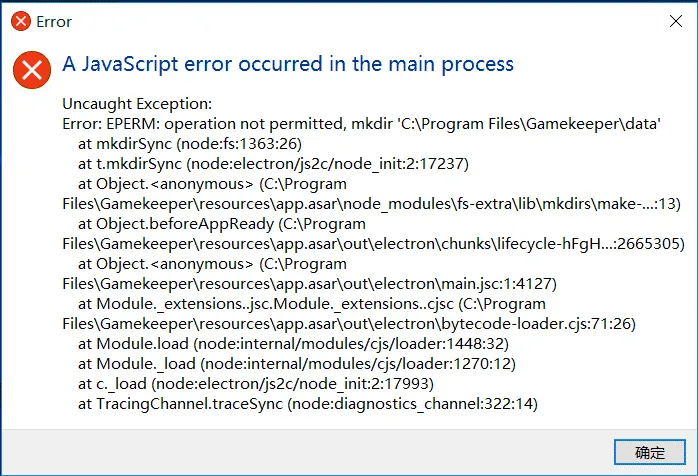
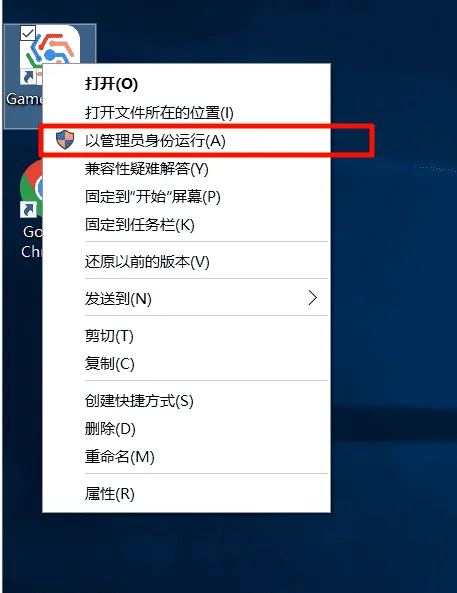
This is due to the software lacking necessary permissions, such as the inability to create a data directory on the C drive. Please try launching the software as an administrator.
Software Startup Unresponsive
Section titled “Software Startup Unresponsive”The software only allows one instance to run at a time. Launching the software again when it is already running will have no effect. If you do not see the running software in your system tray, it may be because the previous launch failed and the process is suspended. Please try searching for Gamekeeper-related processes in the Task Manager and manually terminate them. It is recommended to run as an administrator next time to avoid potential permission issues.
Metadata File Download Failed
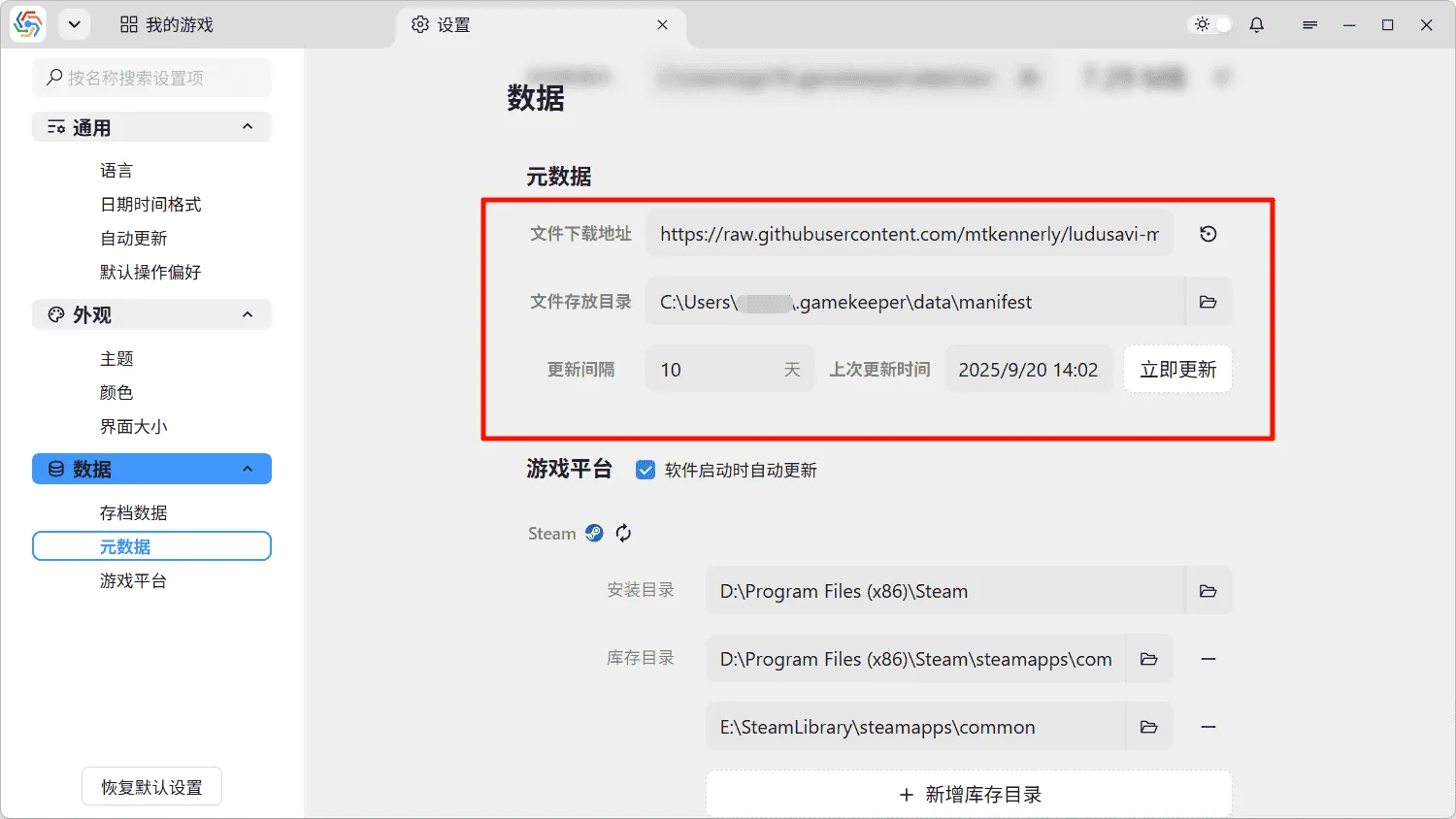
Section titled “Metadata File Download Failed”You can download it from the network yourself and place it in the designated directory. The default download address is https://github.com/mtkennerly/ludusavi-manifest/blob/master/data/manifest.yaml. Users with restricted access to Github can switch to the Gitee mirror address https://gitee.com/Thinkuni/ludusavi-manifest/blob/master/data/manifest.yaml or the GitCode mirror address https://gitcode.com/Thinkuni/ludusavi-manifest/blob/master/data/manifest.yaml.
The directory for storing metadata files is located under Data ----> Metadata on the settings page.
Failed to Read Metadata File
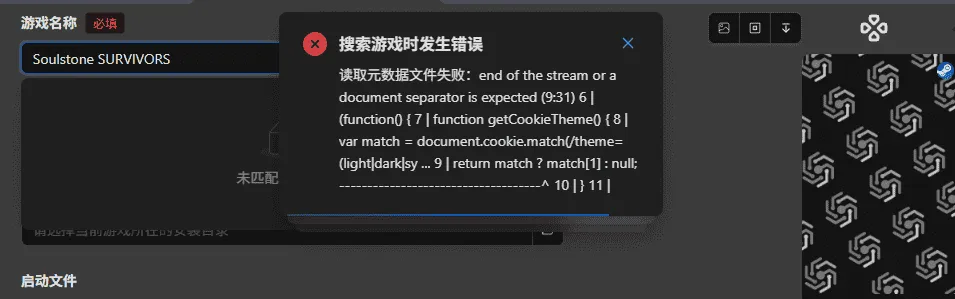
Section titled “Failed to Read Metadata File”The metadata file content is incorrect and not in standard YAML format, usually caused by downloading only half of the file. Check if the metadata file is correct and re-download the file:
Cannot Search for Desired Game When Adding New Game
Section titled “Cannot Search for Desired Game When Adding New Game”- At this stage, the software only supports searching by the official name of the game (usually in English). Please check if you have entered the official name of the game.
- Check if the software’s metadata file is the latest. If it is not the latest file, update it immediately and try again.
- The game you want to add may not yet be collected in the metadata file. You can go to the PCGamingWiki website to add new games (you can seek help from other users or the author). After adding, the metadata file in the network repository will be synchronized within one day, and then you can update your local metadata file.
- If the game you want to add is truly not available, you can choose not to use game metadata and manually complete all game information (See Details). Once the game is included on the website, you can add its identity identifier.
How to Include Only Some Files in Directory Exclusion Rules
Section titled “How to Include Only Some Files in Directory Exclusion Rules”Use the toggle button on the far right of the rule list to convert exclusion rules into inclusion rules with a single click. The syntax remains the same, but the matching results are completely reversed. For details, refer to Exclusion Rules.
Cannot Find Installed Game’s Installation Directory
Section titled “Cannot Find Installed Game’s Installation Directory”The software does not perform a full disk search for game installation directories. Instead, it only searches within library directories, which are your commonly used game installation directories. The software automatically reads common library directories from major game platforms. If you have other commonly used library directories, you can add custom library directories on the settings page. For details, refer to Library Directories.
Automatically Identified Non-Existent Save Directory
Section titled “Automatically Identified Non-Existent Save Directory”Due to variations in each user’s local environment and some imperfections in the metadata file, the software cannot guarantee that its automatically identified game information is 100% accurate. To ensure no save directory is missed, the software’s automatic identification mechanism aims to identify all possible results. Unless a directory can be definitively excluded, it will be returned to the interface even if it doesn’t exist. However, the software places directories that are confirmed to exist at the forefront. Most games have only one save directory. In most cases, you can delete non-existent directories and keep only the one at the front. If all directories do not exist, it might be because your game has not been launched yet, and the save directory has not been generated. It is recommended to launch the game first and then try again. For specific details, refer to Manual Jump.
Automatically Identified Other Directories That Cannot Be Handled
Section titled “Automatically Identified Other Directories That Cannot Be Handled”Other directories are primarily for users to manually add data directories for unspecified purposes. Theoretically, game metadata should not contain other directories. If the software automatically identifies other directories, the only possibility is that the software cannot determine whether the directory is a save directory or a configuration directory, and it is temporarily placed under other directories. At this point, you need to determine the purpose of the directory yourself and then drag and drop it to the corresponding category. For specific details, refer to Manual Jump.
Software Interface Disappears After Launching Game
Section titled “Software Interface Disappears After Launching Game”This is because the software has automatically entered background mode. In background mode, the software completely disables interface rendering to reduce running consumption. For details, please see Background Mode.
Platform Cloud Save Mechanism Causing Rollback Failure
Section titled “Platform Cloud Save Mechanism Causing Rollback Failure”If you find that a rollback is ineffective after performing a game rollback, and you have ruled out an incorrect save directory path setting, the most likely cause is the game platform’s cloud save feature. For example, Steam’s cloud save will automatically synchronize the latest cloud save to your local system before the game starts, which will cause the save file that was already reverted by the software to be updated to the latest version by Steam. If this happens, please disable the conflicting platform cloud save feature in a timely manner.
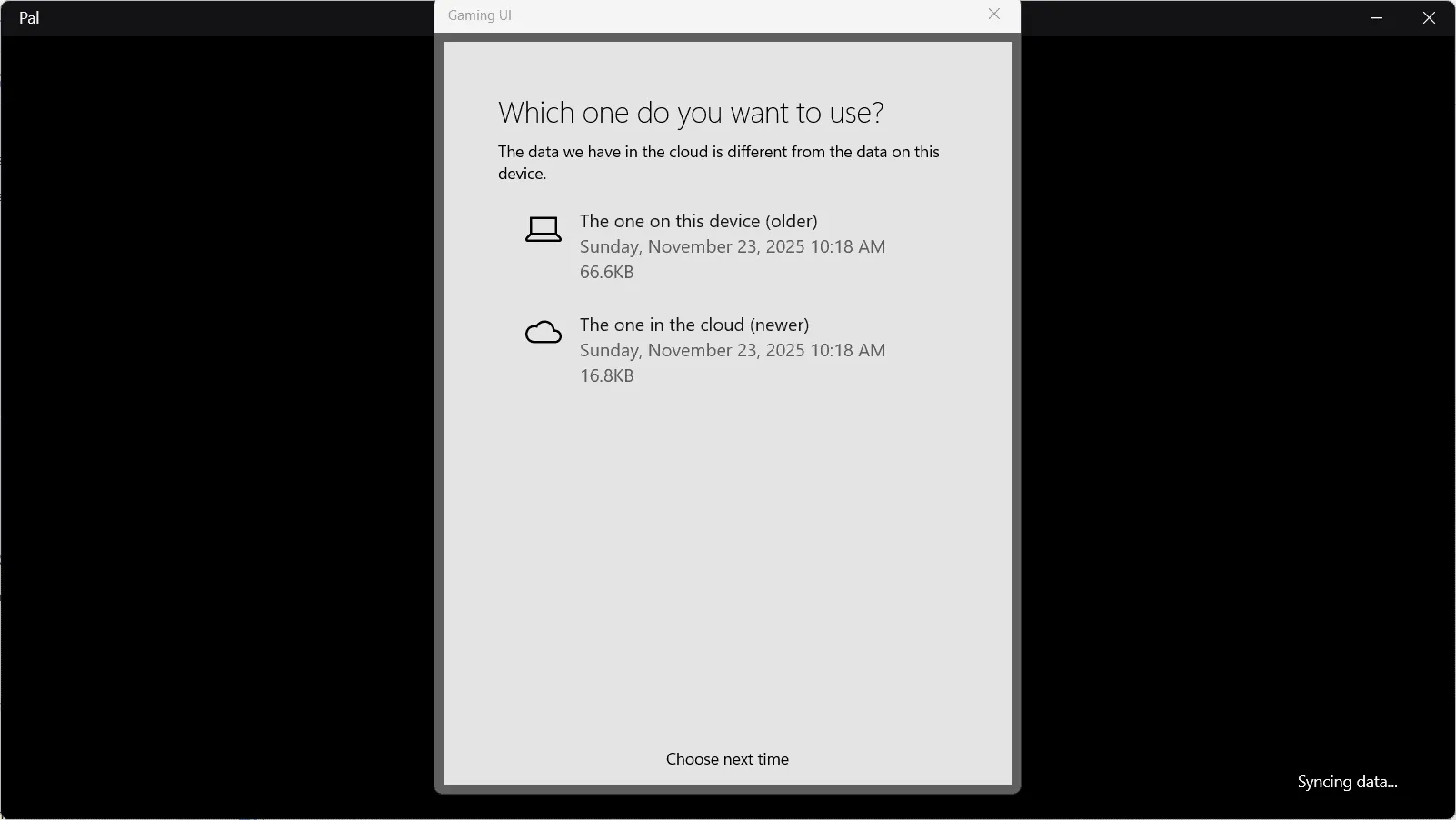
Games on the XBOX platform generally come with cloud save functionality. However, the XBOX app on PC does not provide an option to disable cloud saves. Furthermore, XBOX uses a special encrypted format to store save files. After a rollback, XBOX might not recognize your old save and will attempt to download the cloud save, leading to a mix of new and old saves and save file invalidation. Do not panic; your saves are not lost. You can try rolling back again. Eventually, when you launch the game, a dialog box will appear asking you to choose between local and cloud saves. Selecting the local save will result in a successful rollback:
Software Lagging or Freezing
Section titled “Software Lagging or Freezing”When Saving or Using Saves
Section titled “When Saving or Using Saves”This may be due to too many files needing to be processed in the directory or the presence of some large files. The software is designed primarily for saving personal data, and too many files or excessively large files can consume significant processing time. However, this situation only occurs in a minority of games. Generally, if this happens, it might be because your configured directory exclusion rules are incorrect, or you are directly saving MODs or other unnecessary data.
When Adding Games
Section titled “When Adding Games”When adding games, the software can automatically detect the game’s installation location through an automatic identification mechanism. However, the software only searches for games within the configured library directories, not by scanning your entire computer. If your configured library directories are too large, the software will naturally lag during automatic identification. Please check your library directory settings.
File Overwrite Warning When Using Saves
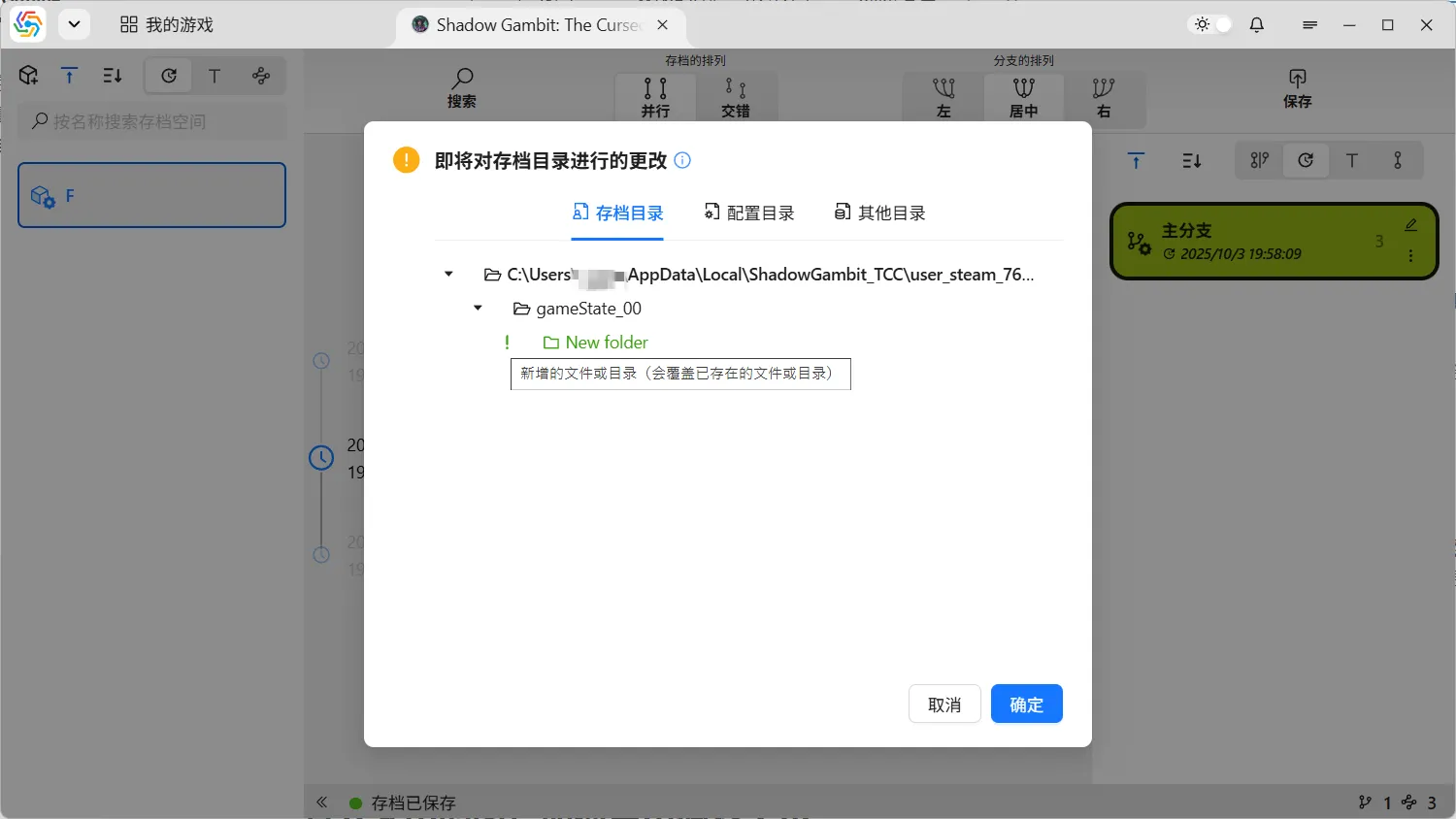
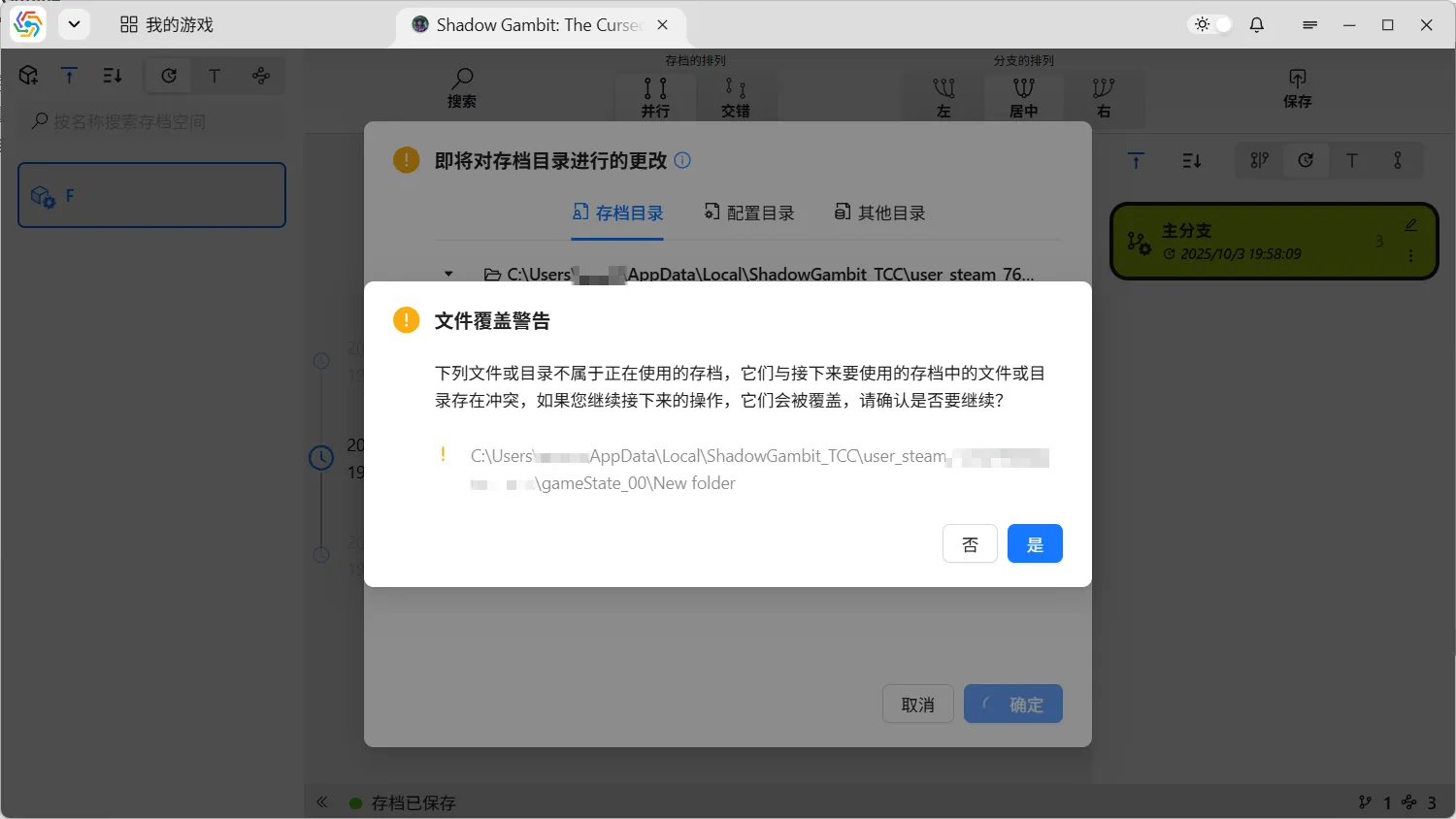
Section titled “File Overwrite Warning When Using Saves”This situation generally occurs after you have changed the exclusion rules for a game’s save directory. Suppose when the old save was created, file A was saved as part of the save file according to the exclusion rules set at that time. However, under the currently set exclusion rules, file A is excluded from the save file. When using the old save, if only comparing the save file, file A would undoubtedly be added back. But in the actual save directory, file A already exists (either it was not deleted when excluded, or there happens to be a file with the same name). In this case, when using the old save, file A is not just being added; it will overwrite existing non-save files. Since, according to the current game settings, file A is no longer considered a save file, the software cannot determine whether directly overwriting file A will cause irreversible data loss, and thus issues a warning that requires your manual judgment:
Incorrect Game Identified When Importing Game from Local
Section titled “Incorrect Game Identified When Importing Game from Local”When importing an installed game from local, the software needs to scan the game’s launch files. However, many games have launch files with the same name (e.g., all are launcher.exe), which can lead to identification errors. If this happens, consider enabling Strict Matching during the scan.
Fast Save Automatically Closes After Game Launch
Section titled “Fast Save Automatically Closes After Game Launch”This is due to enabling the Auto close after exiting the game option in your fast save settings. However, the game process name specified is only the pre-launch program. After the pre-launch program closes, fast save will also close. For details, please refer to Auto Enable or Disable Quick Save.
Cloud Synchronization Related Issues
Section titled “Cloud Synchronization Related Issues”For issues related to save cloud synchronization, please refer to the Cloud Synchronization Tutorial.
Software Usage Tips
Section titled “Software Usage Tips”Software Size Optimization
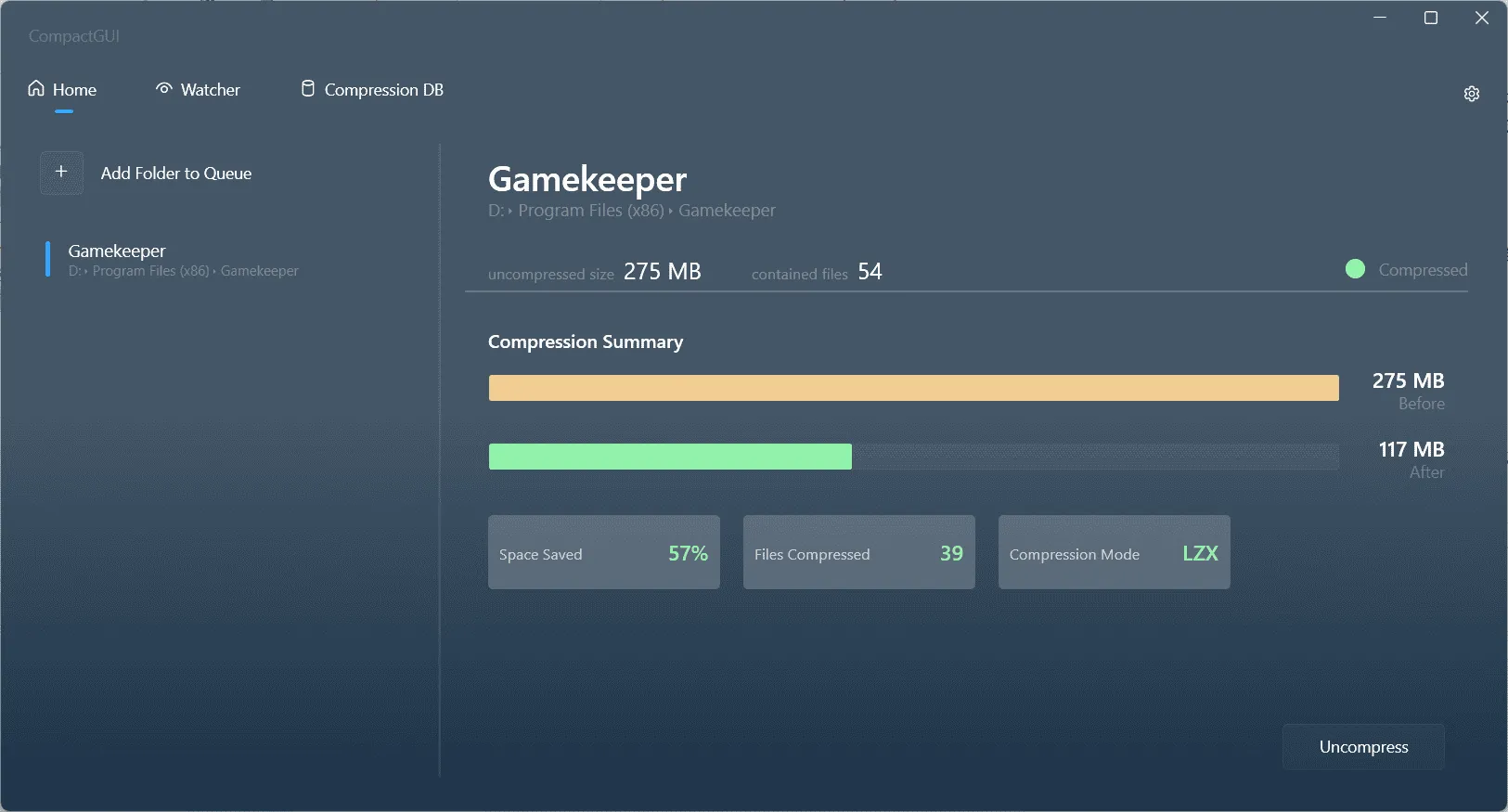
Section titled “Software Size Optimization”For users with insufficient hard drive space, you can try using the CompactGUI tool to compress the software’s size. It is suitable for Windows 10/11 systems and uses the system’s built-in transparent compression features for files. It can compress the size by 40% to 60% with minimal impact on software startup speed and is applicable to all software, games, or files that require compression:
Cache Data Cleanup
Section titled “Cache Data Cleanup”During software operation, many intermediate data files are generated. If you find that these intermediate data files are occupying too much space, you can clean them up according to the following instructions:
- Temporary Files: These are temporary business files generated during software operation. For the installed version, they are located in the C:\Users\[Username]\.gamekeeper\data\TempData directory. For the portable version, they are located in the [Software Installation Directory]\data\TempData directory. The software clears temporary files every time it starts and closes. If the software closes abnormally, you can manually clean up this directory, but please note that you should not clean it while the software is running.
- Software Update Packages: After each upgrade, the installed version of the software retains the installer for the current version to facilitate incremental updates by comparing file differences during the next update. Update packages are located in the C:\Users\[Username]\AppData\Local\gamekeeper-updater directory. Cleaning this directory does not affect the normal use of the software.
- Runtime Cache: The software continuously accumulates cache data during operation. For the installed version, it is located in the C:\Users\[Username]\AppData\Roaming\gamekeeper directory. For the portable version, it is located in the [Software Installation Directory]\cache directory. This directory can be deleted manually. After deletion, it will only affect the startup speed of the software the next time it launches. However, please note that you should not clean it while the software is running.
- Log Files: Software logs help developers better locate bugs. For the installed version, they are located in the C:\Users\[Username]\.gamekeeper\logs directory. For the portable version, they are located in the [Software Installation Directory]\logs directory. The software only keeps logs from the past week. You can manually clean up these log files.

How to Adjust Image Size in Rich Text
Section titled “How to Adjust Image Size in Rich Text”Images in the rich text editor are resized proportionally by default. Hold down Shift to resize them freely, or directly input width and height values through the image file selection box:
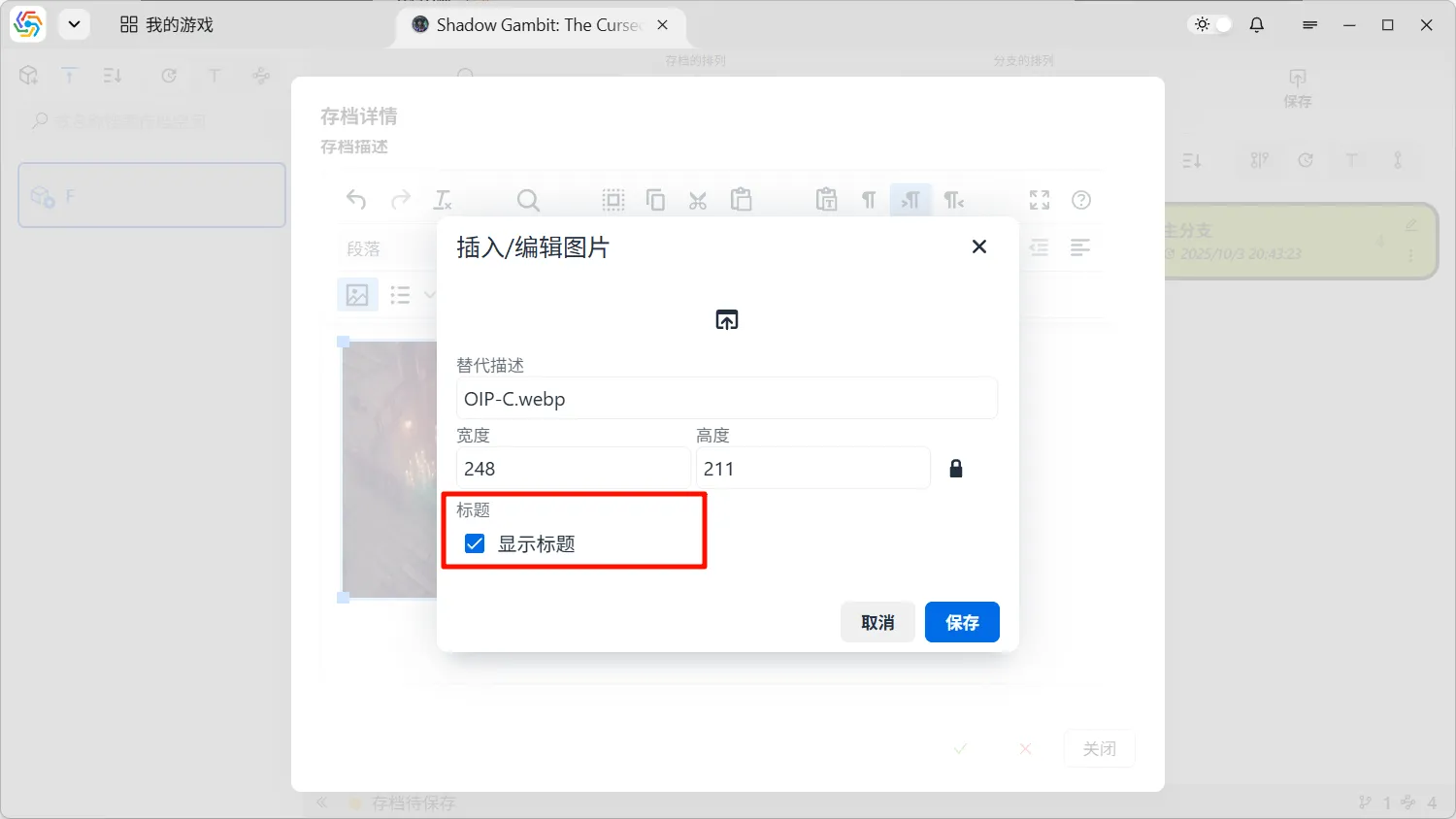
Searching for Images in Save Descriptions
Section titled “Searching for Images in Save Descriptions”The software only retains the text information in save descriptions as the target for searching. Images themselves do not have text information. However, you can set a title for an image, and this title can be searched as the image’s alternative text:
Zooming the Branch Graph with the Mouse Wheel
Section titled “Zooming the Branch Graph with the Mouse Wheel”When the interface is focused on the branch graph, holding down the Alt key and scrolling the mouse wheel will trigger zooming of the branch graph.
How the Mouse Wheel Scrolls the Interface Horizontally
Section titled “How the Mouse Wheel Scrolls the Interface Horizontally”Holding down the Shift key and using the mouse wheel will trigger horizontal scrolling of the interface.
How to Export Image and Video Resources in the Software
Section titled “How to Export Image and Video Resources in the Software”Resources such as game covers, icons, and preview files of saved game have a download button in the image operation bar and video control bar when previewing images or videos. Clicking this button will download the resource to your local device:


When exporting saved game, you can also export the save’s preview file. In the software’s settings page, under Operation Preferences —> Export Saved Game, you can control whether to export the preview file along with the saved game:
