

Game Metadata
What is Metadata
Section titled “What is Metadata”Game metadata includes information such as the game’s name, platform information, installation directory, launch file location, and save directory. For this software, the most crucial piece of information is the location of the save directory, which allows the software to automatically detect the local save directory when adding a game. The primary channels for obtaining game metadata within the software are the internet and the cache data of major game platforms on the local machine. For the internet channel, we are grateful to the open-source project ludusavi. This project periodically scrapes data from the renowned game wiki website PCGameingWiki and integrates it into a manifest.yaml file. The metadata file that the software needs to download upon first use is manifest.yaml. We express our sincere gratitude to the project initiator mtkennerly for this. Additionally, game platforms like Steam also cache metadata for installed games locally. While this data is more accurate than internet-sourced data, it is limited to the corresponding game platform, and not all games have the metadata required by the software. Therefore, metadata from game platforms serves as supplementary data to manifest.yaml, enhancing the accuracy of automatic game identification by the software.
How to Obtain Metadata
Section titled “How to Obtain Metadata”manifest.yaml
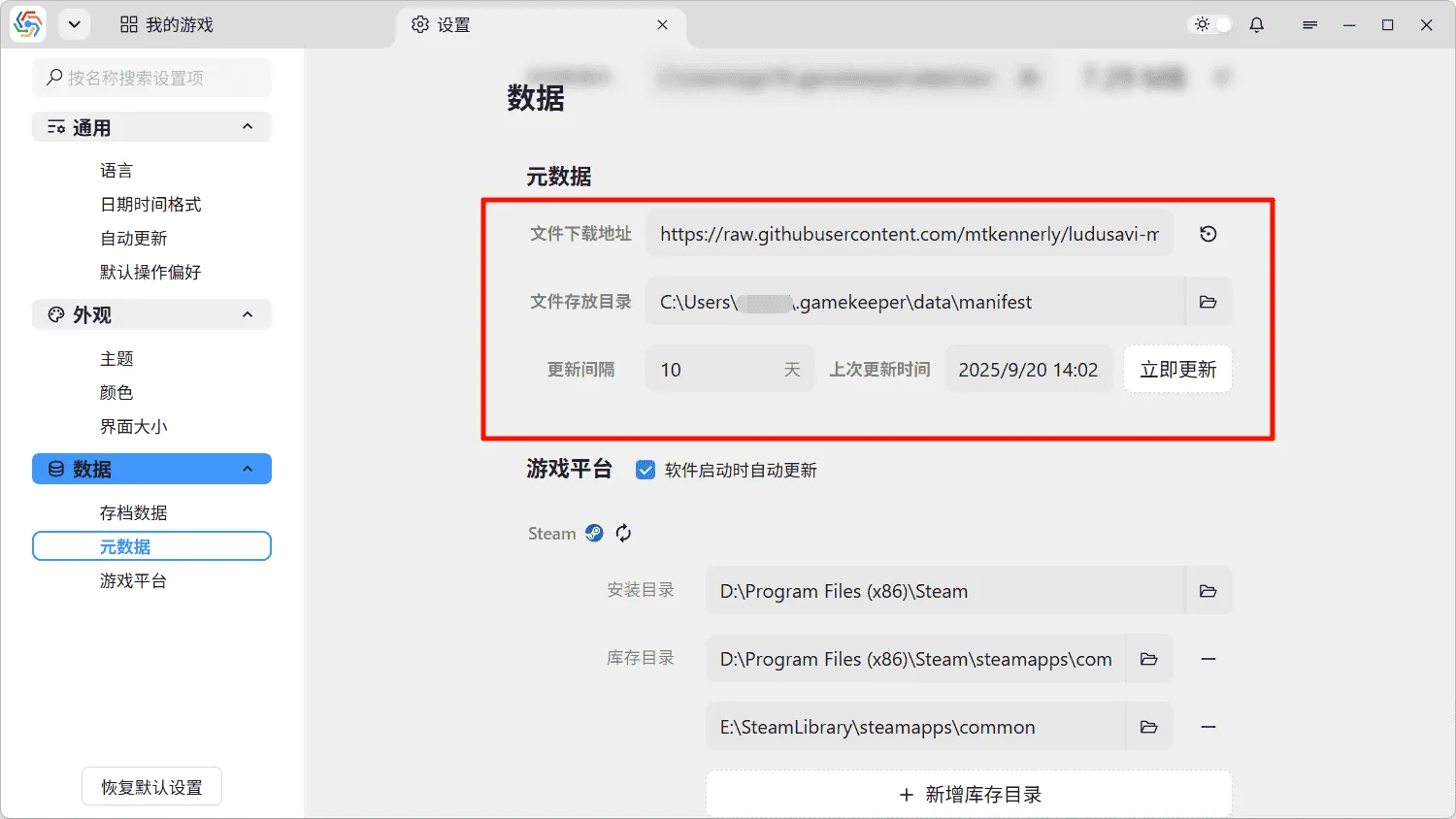
Section titled “manifest.yaml”The manifest.yaml file from the internet channel is primarily downloaded from Github. The default download address is https://github.com/mtkennerly/ludusavi-manifest/blob/master/data/manifest.yaml. For users in China who have difficulty accessing Github, mirror addresses on Gitee (https://gitee.com/Thinkuni/ludusavi-manifest/blob/master/data/manifest.yaml) or GitCode (https://gitcode.com/Thinkuni/ludusavi-manifest/blob/master/data/manifest.yaml) can be used. In the software’s settings page, under the Data ----> Metadata option, you can configure its download. The software will automatically check for updates to the metadata file every few days. If an update is needed, it will download the new manifest.yaml file from the configured download address and place it in the corresponding directory:
Game Platform Cache Data
Section titled “Game Platform Cache Data”The software automatically retrieves cache data from major game platforms on the local machine. However, this depends on whether the software can correctly identify the installation directories of these game platforms. On the settings page, under the Data ----> Game Platforms option, you can see the installation information for game platforms automatically detected by the software:
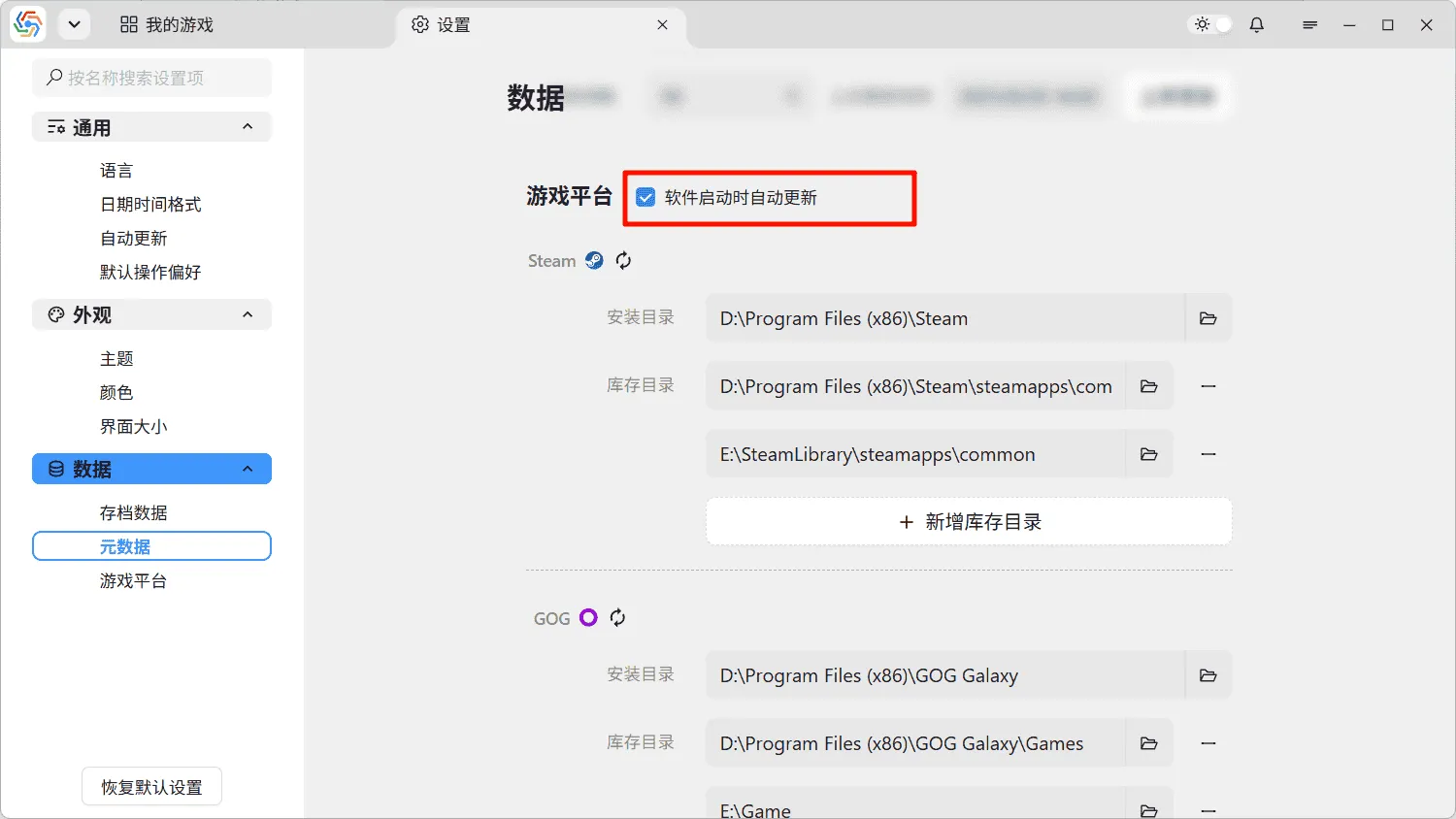
When the Auto-update on software startup option is enabled, the software will automatically detect and update the installation information for relevant game platforms after each startup. This saves you the trouble of reconfiguring after migrating installation directories. However, if the installation information automatically detected by the software is incorrect, please manually correct the game platform installation information and disable the auto-update option to prevent it from being overwritten on the next startup.